If your old laptop takes five minutes to boot, the hard drive is the bottleneck — not the processor. A $30–$60 SSD upgrade is the single best value upgrade in all of tech: boot times drop to seconds and everything feels instant.
Which SSD Do You Need?
Check your laptop's slot first. Older laptops take 2.5-inch SATA SSDs (a direct hard-drive swap); newer ones use M.2 NVMe sticks that are dramatically faster. A 500GB–1TB drive suits most people — SSD prices in 2026 are low enough that 1TB is the sweet spot. Stick to reputable brands; no-name SSDs die young and take your data with them.
Clone or Fresh Install?
You have two paths. Cloning copies everything — files, programs, settings — to the new drive with free software like Macrium Reflect; you'll need a USB-to-SATA adapter to connect both drives. A fresh Windows install is cleaner and often faster, but means reinstalling programs. Cloning preserves your life; fresh install preserves your sanity.
The Swap (Easier Than You Think)
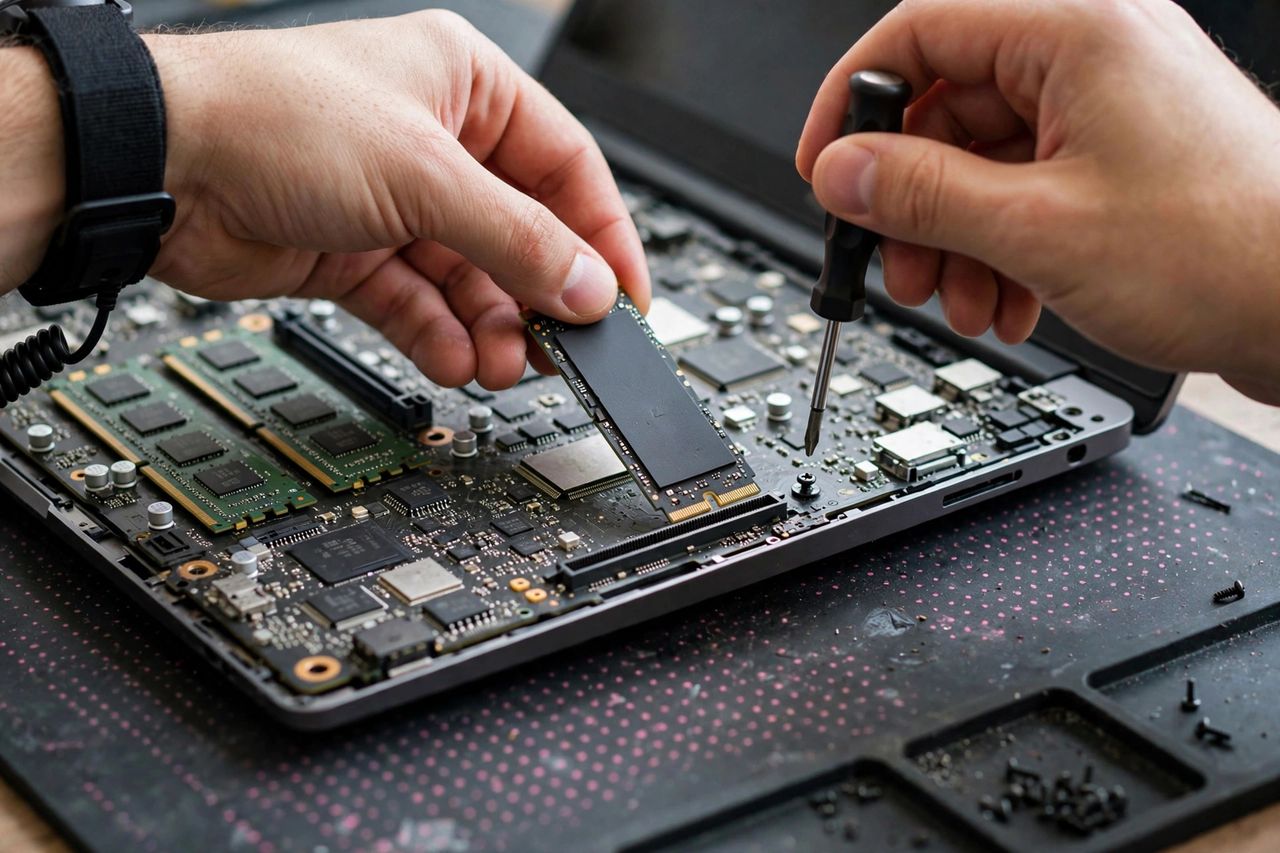
For most laptops: power off, remove the battery if possible, unscrew the back panel, swap the drive, and close up. M.2 drives slot in at an angle and secure with one tiny screw — watch a disassembly video for your exact model first. Ground yourself by touching metal; static kills electronics. The whole job usually takes 20 minutes.
After the Upgrade
Boot up and enjoy — then keep your old drive as a backup for a month before wiping it. Enable TRIM (usually automatic in Windows 10/11) to keep the SSD fast long-term. And while you're in there, consider a RAM bump to 8GB or 16GB — SSD plus RAM turns a "dead" laptop into a daily driver for years.
Don't buy a new laptop because yours is slow. Spend an hour and $50 on an SSD first — you'll wonder why you waited.