A laptop that burns your lap and sounds like a jet is throttling its own speed to survive. Heat kills performance and shortens your machine's life — but these 9 fixes, from free to cheap, genuinely cool things down.
Fix Your Airflow First
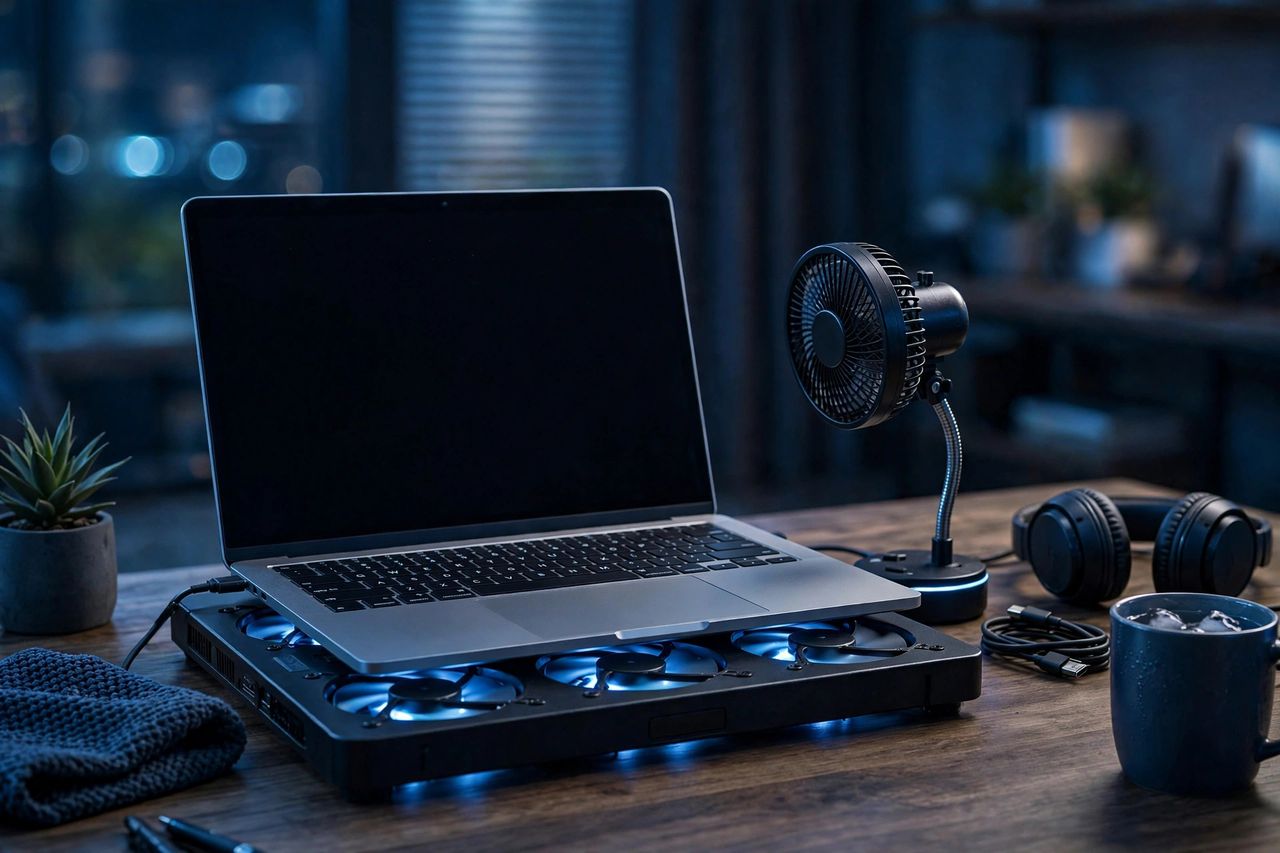
Never use a laptop on a bed or blanket — soft surfaces smother the bottom vents where most laptops breathe. A hard desk helps, and a $15–$25 cooling pad drops temperatures several degrees by feeding the vents fresh air. Keep the vents clear of dust: blast them with compressed air every few months (with the laptop off) and watch the dust bunnies fly out.
Tame the Software Heat
Open Task Manager (Windows) or Activity Monitor (Mac) and kill the CPU hogs — a stuck browser tab can pin your processor at 100%. Limit Chrome tabs and background apps, and switch your power plan to Balanced instead of High Performance for daily work. On hot days, lower screen brightness — the display is a space heater you stare at.
Deeper Fixes That Work
If it's still hot, repaste the CPU: dried thermal paste is the #1 cause of overheating in laptops over two years old — a $10 tube and a YouTube tutorial for your model does it. Undervolting (with tools like ThrottleStop) cuts heat with zero performance loss. And update your BIOS and drivers; manufacturers regularly fix fan curves and power bugs.
Know When It's Serious
CPU temps under 85°C under load are normal; constant 95°C+ with shutdowns means something's wrong. Swollen batteries (trackpad popping up, case warping) are a fire risk — stop using it and get service immediately. Heat warnings aren't suggestions; respect them.
Start with airflow, then software, then paste. Most overheating laptops just need cleaning and a cooling pad — not a replacement.