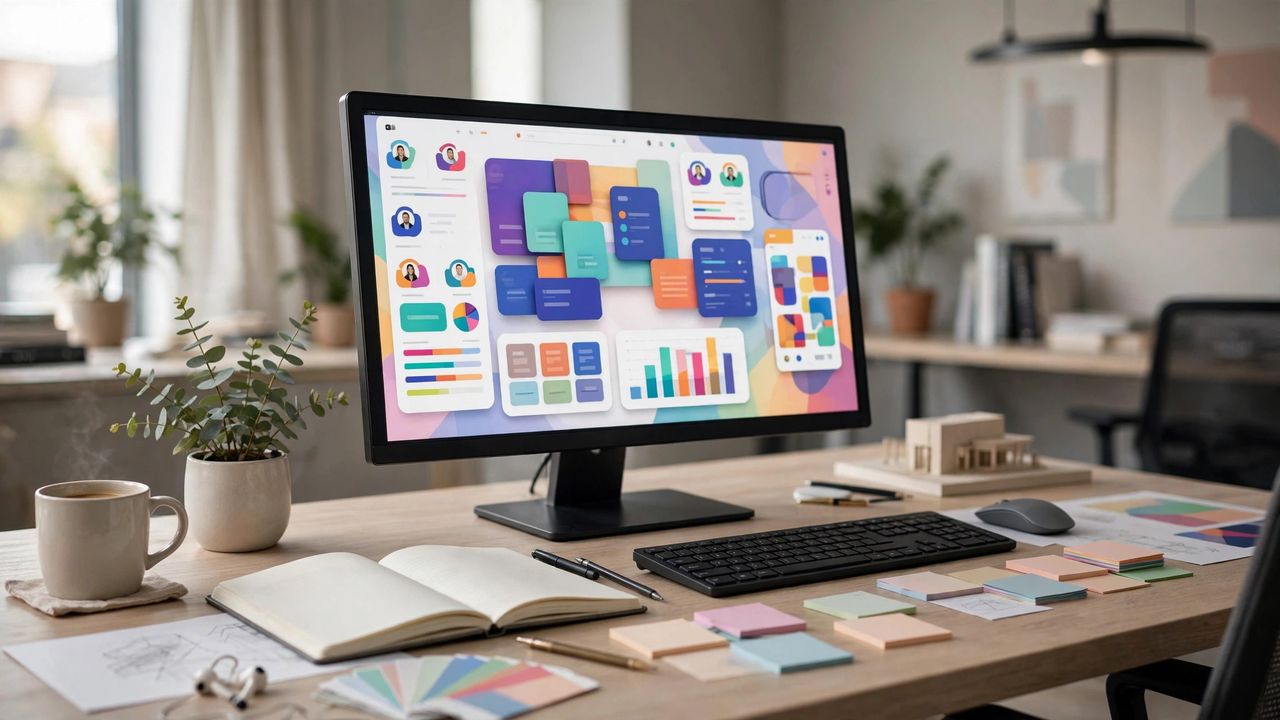
Figma runs in your browser, costs nothing to start, and is the tool most UI design jobs expect you to know. The interface looks intimidating for about ten minutes — then everything clicks. This 2026 beginner's guide takes you from opening Figma for the first time to designing a real mobile app screen, all in one weekend of focused practice.
Master Frames and Basic Shapes
Everything in Figma lives inside frames — think of them as artboards for each screen. Create a phone frame, then add rectangles, text, and images inside it. Learn the move tool, alignment buttons, and the layers panel on the left. Practice recreating a simple app login screen by copying what you see; imitation is the fastest teacher at this stage. Name your layers as you go — unnamed "Rectangle 47" layers become unmanageable in real projects.
Auto Layout Changes Everything
Auto layout makes elements resize and reflow automatically — it is the difference between amateur and professional Figma work. Select a button, add auto layout, and watch padding and spacing behave like real CSS. Build cards, nav bars, and lists with it, and your designs become responsive with almost no extra effort. It feels strange for an hour, then becomes second nature. Learn auto layout before anything advanced — it is the single most valuable Figma skill for beginners.
Components: Design Once, Reuse Everywhere
Turn repeated elements — buttons, inputs, cards — into components, and every instance updates when you edit the master. Create variants for different states like hover, disabled, and active. Build a small component library as you design, and future screens assemble in minutes instead of hours. This is exactly how professional design systems work. Make a component the second time you need an element — the third copy-paste is always the one you regret.
Your Weekend Project Plan
Saturday morning: learn the interface and recreate two screens from your favorite app. Saturday afternoon: rebuild them with auto layout and components. Sunday: design one original screen — a profile page or settings screen — using your component library. Share it in a Figma community file or on social media for feedback. Finish one complete original screen by Sunday night — a finished imperfect project teaches more than ten abandoned tutorials.
One weekend of real practice puts you ahead of most people who just watch tutorials. Open Figma, follow this plan, and by Monday you will genuinely be a UI designer.